Building a useful AV interface takes more than arranging buttons on a screen. A room control page needs to send commands, show reliable feedback, adapt to its display, and remain understandable to the people who maintain it. AVstudio Editor NG brings those parts together in a visual workspace inside Visual Studio Code.
Following the October 15 Reveal, here is a closer look at the workflow described in the AVstudio Editor NG Product Guide: visual design, equipment connections, live testing, local project files, and AI assistance. The free Community edition includes the core tools needed to build and test an interface, while PRO adds priority support and is intended to grow with advanced capabilities as they are released.
A visual editor in a familiar workspace
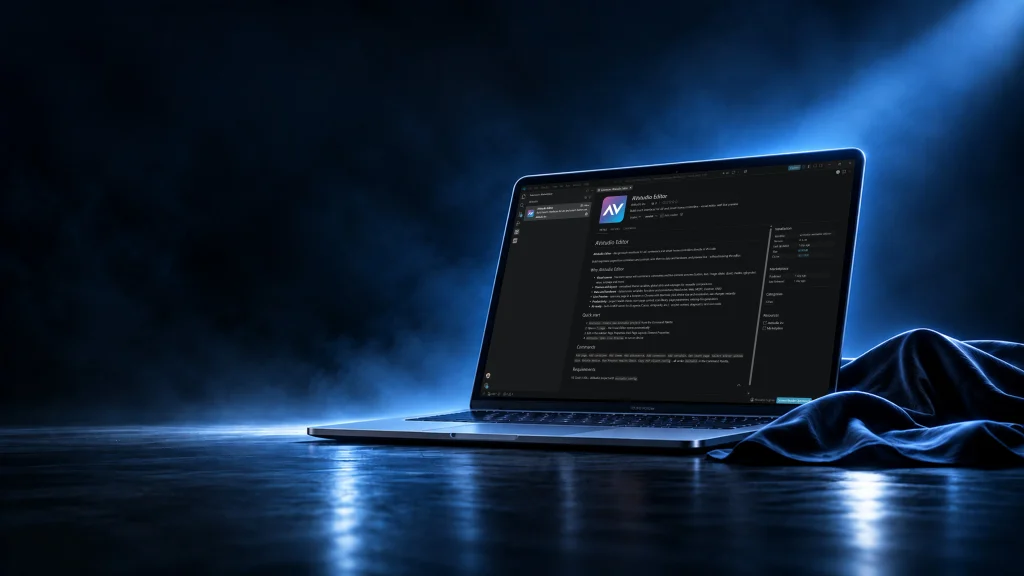
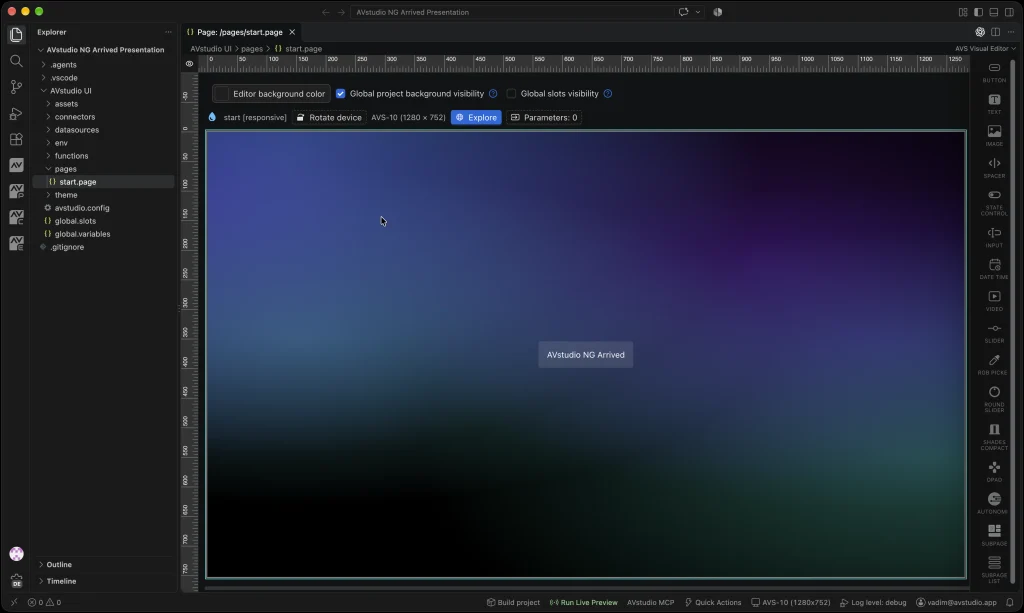
AVstudio Editor NG runs as a VS Code extension. Its visual canvas sits alongside the project's files and development tools, so a designer can arrange controls, an integrator can configure connections, and a developer can inspect the underlying project in the same workspace.
A typical project starts with pages and containers. From there, you can add buttons, text, images, sliders, directional controls, video, and other elements. Drag a control from the palette or add it through a context menu, then select it to configure its content, appearance, data bindings, states, and actions.
The resulting interface is an HTML5 application, with HTML, CSS, and JavaScript providing structure, styling, and behavior. The visual editor makes those capabilities accessible through a design workflow while keeping the underlying project available for inspection and maintenance.
Four panels for different parts of the project
The AVstudio Hub is the starting point for creating and managing project entities. It provides access to pages, containers, variables, datasources, functions, connectors, themes, and icons. When starting in a selected folder, you can also initialize the project structure from the Hub.
Page Properties controls the screen as a whole, including its layout, container structure, parameters, appearance, and page actions. Container Properties focuses on how groups of controls are arranged, with settings for flow, alignment, spacing, scrolling, and appearance.
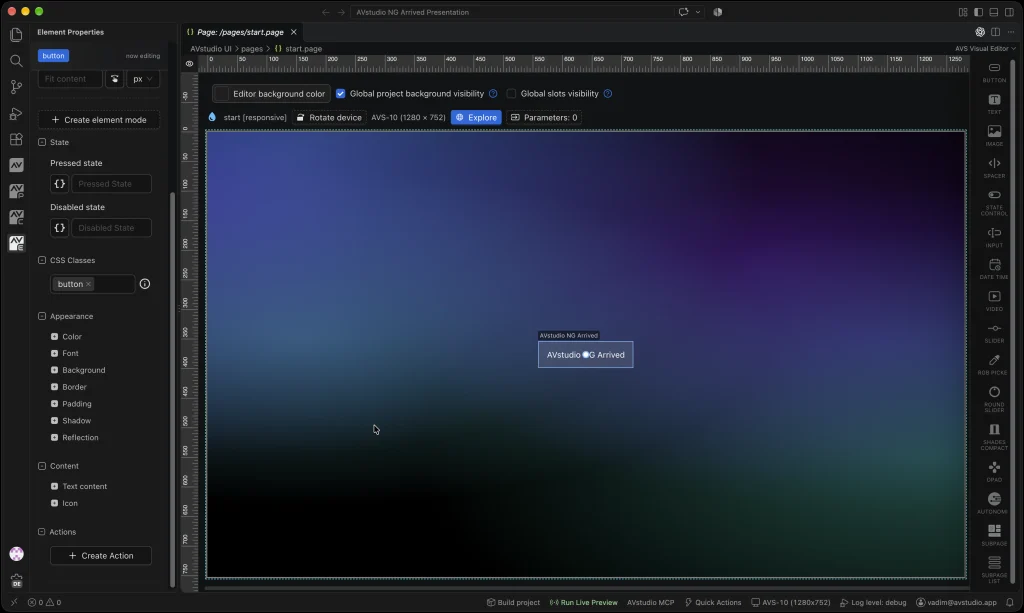
Element Properties handles the selected control: its content, size, states, appearance, actions, and data bindings. Finally, Explorer provides access to the actual project folders and files, including pages, assets, connector definitions, styles, and settings. These views make it possible to move between the overall screen, a group of controls, an individual element, and its source.
Design for fixed panels and changing screen sizes
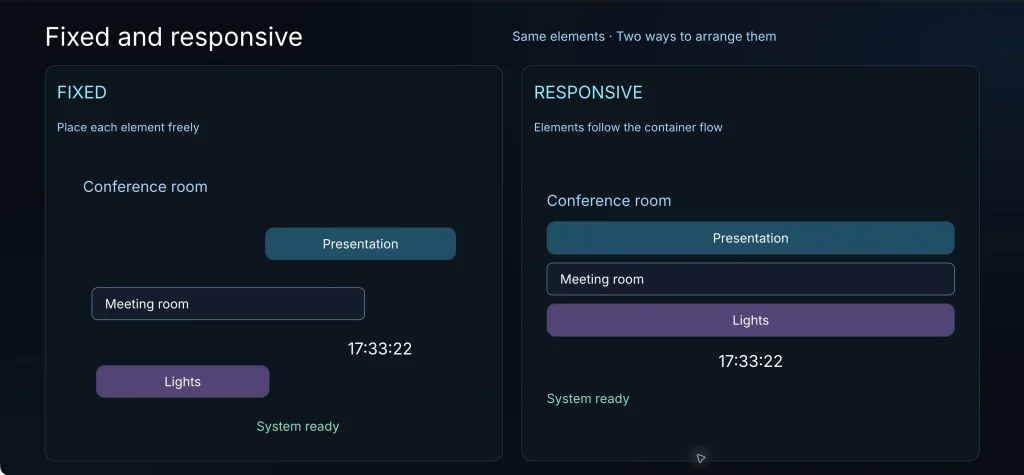
Interfaces do not all run on the same kind of display. A dedicated touch panel may need a precise composition for a known resolution, while a browser interface may need to accommodate different window sizes. NG supports both fixed and responsive layouts.
Fixed placement gives you control over the position of elements, with constraints that can relate a control to an edge of the available space. Responsive container flow organizes elements as the available space changes. Alignment, spacing, and scrolling help define how those groups behave.
For example, a room page might keep source controls together, place a status area below them, and allow a longer list to scroll independently. During development, device-size and orientation tools help you review that arrangement at the dimensions relevant to the project.
Keep the design consistent with themes and icons
A coherent interface should look and behave like one system, even when it contains many rooms or screens. Project themes provide shared styling across pages. You can open the theme from the Hub or work directly with its files and companion CSS when a project needs more specific customization.
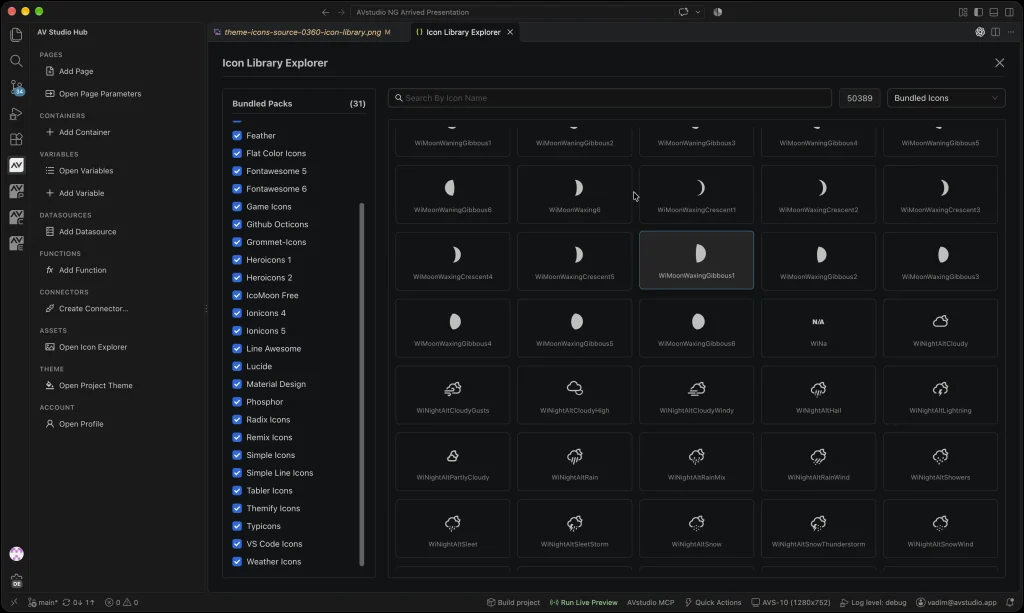
NG also includes an icon library with 50,389 icons across 31 bundled packs, according to the guide. The library covers common interface needs such as navigation, media, lighting, climate, and weather. Teams can also add their own image and icon assets. Themes and the bundled icon library are included in Community.
Reuse pages across rooms and devices
Many projects repeat the same patterns: a volume control, source selector, room card, or navigation bar. Reusable subpages let you create those patterns as shared parts of the project and place them wherever they are needed.
Page parameters give each instance its own values. A room card, for example, can share its layout with other cards while displaying a different room name or using a different device reference. When the common design changes, the shared page provides a central place to update it.
Global slots extend reuse to the surrounding interface. Shared pages can be attached to the top, left, right, or bottom of the screen, with visibility configured for individual pages. That makes them useful for headers, navigation, and system status that should remain available as users move through the interface.
Connect the interface to equipment and data
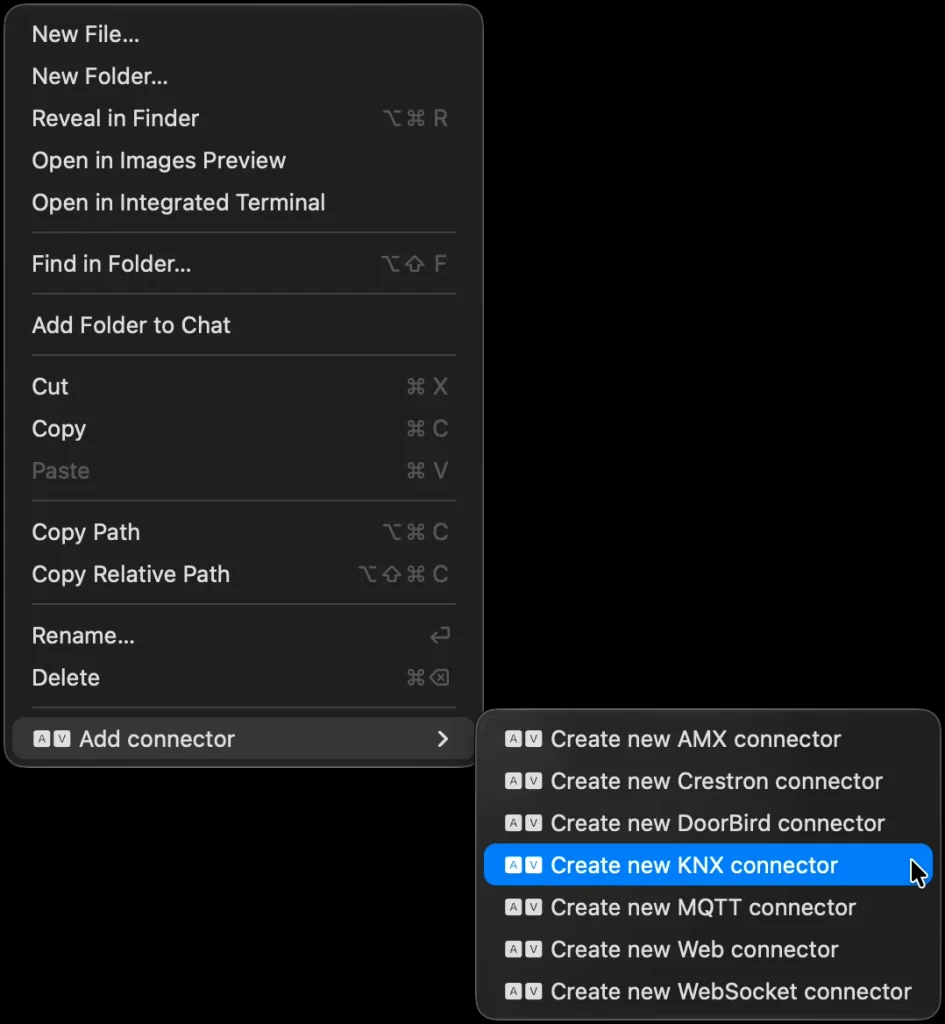
The visible controls are only one part of a working system. Behind them, connectors provide communication with equipment and external services. The guide lists connection types including Crestron, KNX BAOS, MQTT, HTTP, and WebSocket. The right choice depends on the equipment and services in the installation.
Connector configurations are stored in the project's connectors folder. A project can contain multiple connections, including separate connectors for different BAOS devices. Giving each connection a clear name helps identify the gateway or equipment it represents when configuring actions.
For KNX BAOS, the settings include the host, port, credentials, and connection options. The guide's illustrated configuration was tested with BAOS 777; it does not claim compatibility with every gateway model. Crestron configuration includes the processor connection and IPID, along with a workflow for retrieving or generating an authentication token.
MQTT uses topics and payloads to exchange commands and data, while HTTP datasources can retrieve API content and WebSocket connections support message-based integrations. Once configured, these connections can be used by actions and data bindings in the interface.
Turn controls into actions and feedback
An interface needs to do something when a person interacts with it. Actions can send a system command, navigate to another page, change a variable or parameter, or display an overlay. A single element can have multiple actions, allowing a source button to send a command and open the related control page as part of the same interaction.
Different integrations expose different configuration fields. A Crestron action can identify a signal by name or join. A KNX action selects a connector, datapoint, format, and value. An MQTT action specifies a connector, topic, and message payload. Routing actions choose a destination page, while overlay settings control placement, timing, background masks, and dismissal.
Feedback is just as important as the command. Pressed and Disabled states can be bound to dynamic data, such as global variables, page parameters, or Crestron feedback. A source button can then reflect the selected input, and a control can show that it is unavailable when a configured condition applies. The result is an interface that communicates what the system is reporting.
Use variables, parameters, and structured data
Global variables hold values shared across the project. Page parameters belong to a page or a reusable instance. Both help separate a control's presentation from the values it displays or uses. Defaults can provide useful labels before feedback arrives, while external updates and formatter functions can change the displayed value as the system runs.
Datasources bring structured content into the interface. A project can use local JSON or retrieve remote data through a configured connection. That data can supply repeated items, such as a list of rooms or sources, while a reusable page defines their shared appearance.
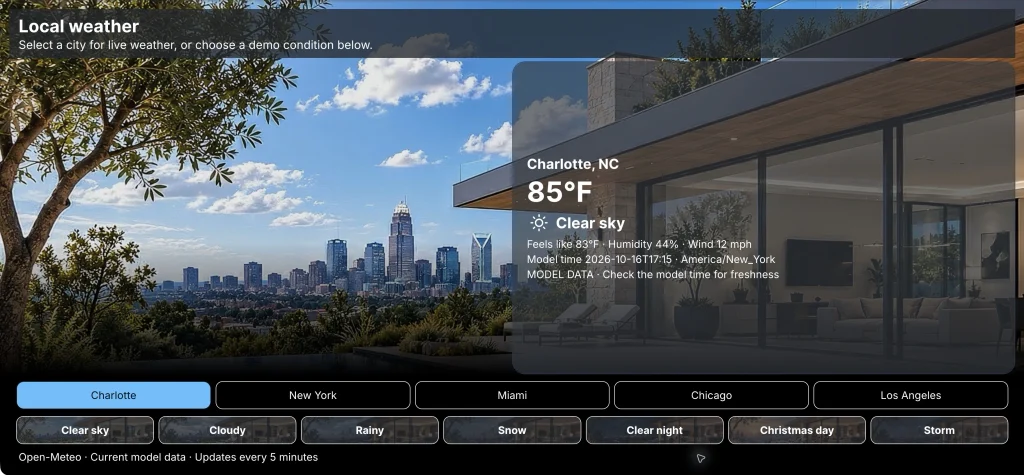
JavaScript formatter functions can turn incoming information into readable labels, format numbers, select an icon, or prepare values for repeated content. The guide's weather example combines a Web datasource, formatted values, and visual states; its media example combines MQTT commands, status values, and live MJPEG feeds. Those examples depend on their respective external services and connections.
Test the experience with Live Preview
Live Preview opens the interface in a browser while development is underway. You can navigate between pages, open overlays, try controls, and review displayed values. This is an opportunity to assess the actual user experience: whether the next action is easy to find, whether a selected state is clear, and whether users can reach a control without losing context.
When the necessary equipment, services, and network connections are available, preview can also include real system feedback. The guide describes a connected Crestron example in which commands and responses can be tested from the browser without uploading a new panel build for every development change.
Preview and build serve different stages. Preview helps you inspect the running interface; Build project creates a delivery archive in the project's build folder. ZIP and CH5Z options support the relevant packaging workflows. Rebuilding replaces the previous generated archive for that output, so teams should retain release history through Git or a deliberate archive process.
Investigate behavior with AVstudio DevTools
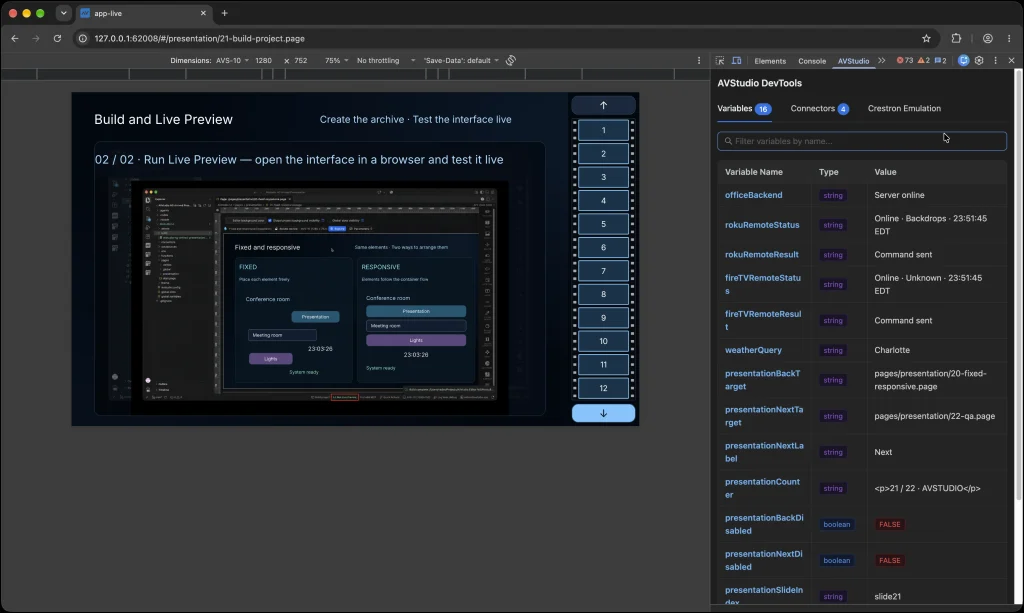
When a control does not behave as expected, the question may be whether a value arrived, whether a connector is online, or whether the interface is bound to the right data. AVstudio DevTools adds an AVstudio panel to Chrome DevTools for inspecting runtime information.
The Variables view shows current values and types. The Connectors view reports connection states and error details. Crestron Emulation lets you provide a digital, analog, or serial type together with a join and value to test how the interface responds to feedback. Project health checks provide another way to identify issues while you work.
These tools help break down a problem. If a selected-source indicator does not update, you can inspect the runtime value, check the connection, and test the relevant feedback before deciding where to make a change.
Combine visual editing with AI assistance
AI assistance is included in Community and can be used with a compatible assistant. It can help with tasks such as creating pages, adding components, applying styles, configuring behavior, and working with project logic. The results remain part of the structured AVstudio project, where they can be reviewed and adjusted in the visual editor.
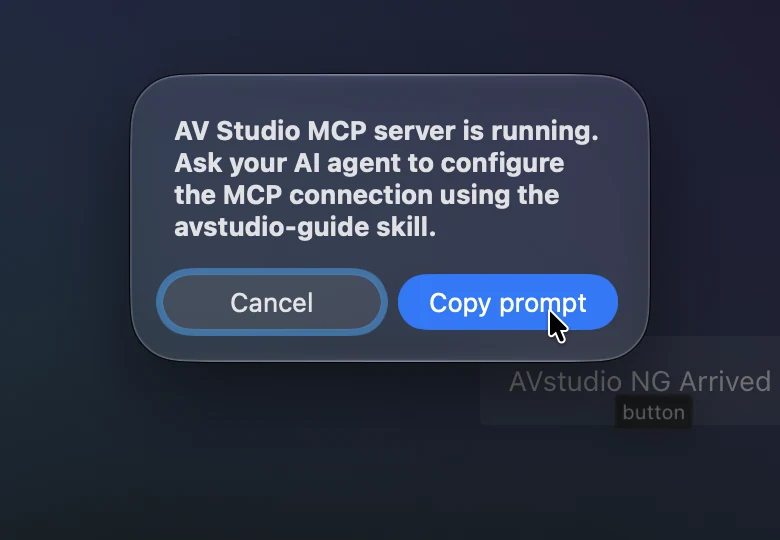
The built-in Model Context Protocol (MCP) server provides project context, diagnostics, and supported editor tools. The MCP menu includes a setup prompt for a compatible assistant, as well as access to settings, logs, and server restart controls. The generated project guide supplies information about the project structure and editing rules.
A request could describe a room page with source selection, lighting controls, and a status area using the project theme. After changes are made, you can inspect the layout, adjust individual controls, and run Live Preview. Available MCP tools depend on the installed extension version and client, and the guide recommends reviewing and testing assistant-generated changes. An AI connection is optional.
Local files, Git, and project ownership
NG stores pages, connector settings, datasource definitions, styles, logic, and assets as local project files. That makes it possible to keep backups, hand source files to a colleague, and maintain the interface alongside related control-system code.
Git adds a history to that file-based workflow. Teams can compare revisions, review changes, create branches for new work, and bring approved updates together. When an interface grows to cover another room or needs a revised navigation flow, shared components and version history give the next person a starting point for understanding the project.
Local editing also supports offline work. Connections to remote APIs, equipment, online repositories, and AI services still depend on the availability of those services and networks.
Moving from Editor Cloud
For existing Editor Cloud users, the transition to NG includes a move toward local project ownership. The October 2026 transition plan schedules Editor Cloud retirement for January 15 and calls for a project-export path so users can retain their source files and continue working locally.
The export workflow was announced as forthcoming. Follow official AVstudio updates for its availability and migration instructions as the transition progresses.
Community and PRO
Community is free and includes the core workflow: visual editing, layouts, connectors, actions, variables, parameters, datasources, functions, themes, reusable pages, global slots, icons, health checks, Live Preview, and AI integration. It also includes documentation, Community access, and support without a guaranteed response time.
According to the October 2026 guide, PRO costs $59 per month or $590 per year per user. It includes Community features and priority support. Secure secrets, panel deployment, custom elements, and CI/CD capabilities are planned but not yet available; the final PRO feature set is still being defined. The guide also describes a partner program with eligibility requirements and individually assigned access.
Putting the workflow together
Consider a meeting room that needs source selection, volume adjustment, lighting controls, and a clear indication of the current system state. Begin by defining the screens and grouping related controls into containers. Use a shared theme for consistent colors and typography, and choose icons that make the available actions easy to recognize.
Next, configure the connectors required by the installation. A source button can send a command through the appropriate connection, while a feedback binding updates its visual state when the system reports the selected input. A shared variable can carry information used across several screens; a page parameter can hold a value specific to one reusable room page.
As the interface grows, common navigation can move into a global slot and repeated room controls can become subpages. If the project includes a list of rooms or sources, a datasource can supply the items while the reusable page handles their presentation. This structure gives the team clear places to maintain both content and design.
Run Live Preview throughout the process. Test navigation and overlays first, then verify commands and feedback with the equipment and services available to the project. If a value looks wrong, inspect the variables and connector status in DevTools. Review the result at the screen dimensions and orientations the installation will use.
Finally, build the appropriate archive for delivery and retain the source and release history. This sequence is an example of how the guide's features can work together; the exact connections, layout, and tests depend on the system being built.
Get started
Install Visual Studio Code, then add AVstudio Editor from Visual Studio Marketplace or the VS Code Extensions panel. Choose a working folder and initialize a project from AVstudio Hub. Create a page, add a container and a few controls, configure their appearance and actions, and open Live Preview.
A focused first project might combine source selection with room status. Add a connector or datasource, test the feedback, and expand the interface with shared styles, reusable pages, and navigation as the project grows. Explore AVstudio Editor NG and get started with Community.